
Instagram video sizing has become simpler in some ways and more complicated in others. A standalone video upload is now treated as a Reel, which makes 9:16 vertical video the main format to remember. Stories use the same full-screen canvas, while videos added to carousels still need to be designed for the Feed.
But getting the dimensions right is only the first step. A video can be technically valid and still lose a headline behind Instagram's interface, crop a Reel cover badly on your profile grid, or look softer than expected after export and compression.
For most Reels and Stories, the safest production starting point is 1080 × 1920 pixels at a 9:16 aspect ratio. Carousel videos are the major exception, where 1080 × 1350 pixels at 4:5 gives you a portrait format better suited to the Feed.
This guide breaks down the current Instagram video sizes, aspect ratios, length limits, safe zones, cover crops, and export settings you need in 2026.
📥Download the Instagram Video Size & Format Cheat Sheet
Keep Instagram's video dimensions, crop guides, and export settings beside your editing workflow.
The free IMH Instagram Video Size & Format Cheat Sheet includes:
- Recommended sizes for Reels, Stories, and carousel videos
- Instagram video aspect ratios at a glance
- Practical Reels and Stories safe-zone guidance
- Reel cover and profile-grid crop diagrams
- Recommended Instagram video export settings
- A pre-upload checklist for catching crop, quality, and formatting problems
- Instagram Video Dimensions at a Glance
- What Is the Best Instagram Video Size?
- Instagram Reels Video Size
- What Size Should an Instagram Video Post Be?
- Instagram Stories Video Size
- Instagram Carousel Video Size
- Instagram Video Size Limits
- Which Instagram Video Aspect Ratio Should You Use?
- Instagram Reels and Stories Safe Zones
- Instagram Reel Cover Size and Profile Grid Crop
- How to Resize a Video for Instagram
- 6 Tools for Creating and Editing Instagram Videos
- Your Shortcut to Sharper, Smarter Instagram Videos
- Frequently Asked Questions
Instagram Video Dimensions at a Glance
If you only need the dimensions, start here.
The right Instagram video size depends primarily on how the video will be published. Reels and Stories use a tall, full-screen canvas, while videos inside carousel posts are designed around the Feed.
Format | Resolution | Aspect Ratio | Max Length |
Feed Video (Vertical) | 1080 x 1350 px | 4:5 | 15 min (Reels), 60 min (Video tab) |
Feed Video (Square) | 1080 x 1080 px | 1:1 | 15 min |
Reels | 1080 x 1920 px | 9:16 | 90 seconds |
Stories | 1080 x 1920 px | 9:16 | 60 seconds |
Carousel Video | 1080 x 1080 px (or 1080 x 1350 px) | 1:1 or 4:5 | 60 seconds per card |
Instagram Video (Long-form) | 1080 x 1920 px | 9:16 | 15 - 60 minutes |
*Instagram currently allows Reels up to 20 minutes, but Reels longer than three minutes will not be recommended to new audiences. That makes three minutes the more important threshold when discovery is part of the goal.
Instagram also no longer maintains a separate standard-video-post workflow for a single video in the way outdated guides describe it. In current publishing workflows, a standalone Instagram video is treated as a Reel.
Carousel video is the main exception. A carousel can combine photos and videos in the same Feed post, with Instagram currently allowing up to 20 items when publishing natively. Third-party publishing tools may have lower limits because Meta's API does not always expose the same capabilities as the Instagram app.
If You Remember One Instagram Video Size
For most modern Instagram video production, remember:
- 1080 × 1920 px
- 9:16
Use that as your starting canvas for:
- Instagram Reels
- Single video posts
- Instagram Stories
The important exception is carousel video, where a 1080 × 1350 px / 4:5 portrait canvas is the stronger default for Feed presentation.
If you’re building multi-slide content, see our guide to using Instagram carousels for practical tips on structuring and publishing swipeable posts.
What Is the Best Instagram Video Size?
For most standalone Instagram video, the best size is 1080 × 1920 pixels with a 9:16 aspect ratio.
That gives you the full-screen vertical canvas used by Instagram Reels. Because Instagram now treats standalone video as Reels in its current publishing model, 9:16 is also the most useful starting point when someone simply wants to know what size video to post on Instagram. Current publishing guidance likewise recommends 9:16 to avoid unnecessary cropping or empty space.
Stories use the same 1080 × 1920 / 9:16 canvas, which means teams creating both formats can often begin from a single vertical master.
That does not mean you should publish the exact same finished composition everywhere. Reels and Stories place different interface elements over the video, so subtitles, logos, products, and important text may need to move even though the underlying dimensions stay the same.
Carousel video is different because it appears within a Feed-style post rather than a full-screen vertical viewer. For that format, we recommend 1080 × 1350 pixels at 4:5. Current 2026 carousel guidance identifies 4:5 as the practical portrait standard for video slides, while 1:1 remains a supported alternative.
If you need help creating or adapting video for these formats, explore our roundup of Instagram Video Makers for tools that can speed up editing, resizing, and export.
Which Instagram Video Size Should You Use?
| If you're creating... | Start with |
| Instagram Reel | 1080 × 1920 / 9:16 |
| Single Instagram video post | 1080 × 1920 / 9:16 |
| Instagram Story | 1080 × 1920 / 9:16 |
| Portrait carousel video | 1080 × 1350 / 4:5 |
| Square carousel video | 1080 × 1080 / 1:1 |
The simplest production workflow is therefore to maintain two primary video masters:
- 9:16 full-screen vertical for Reels and Stories.
- 4:5 Feed portrait for carousel video.
Add a square 1:1 version only when the creative or distribution workflow actually calls for it.
That is more efficient than exporting every project in several ratios, while still respecting the two very different ways Instagram displays video.
And dimensions are only part of the decision. A correctly sized video can still be cropped or obscured when it appears in a different Instagram surface. Next, we can break down Reels video size and length in detail, including the difference between Instagram's technical 20-minute limit and the three-minute threshold that matters for discovery.
Instagram Reels Video Size
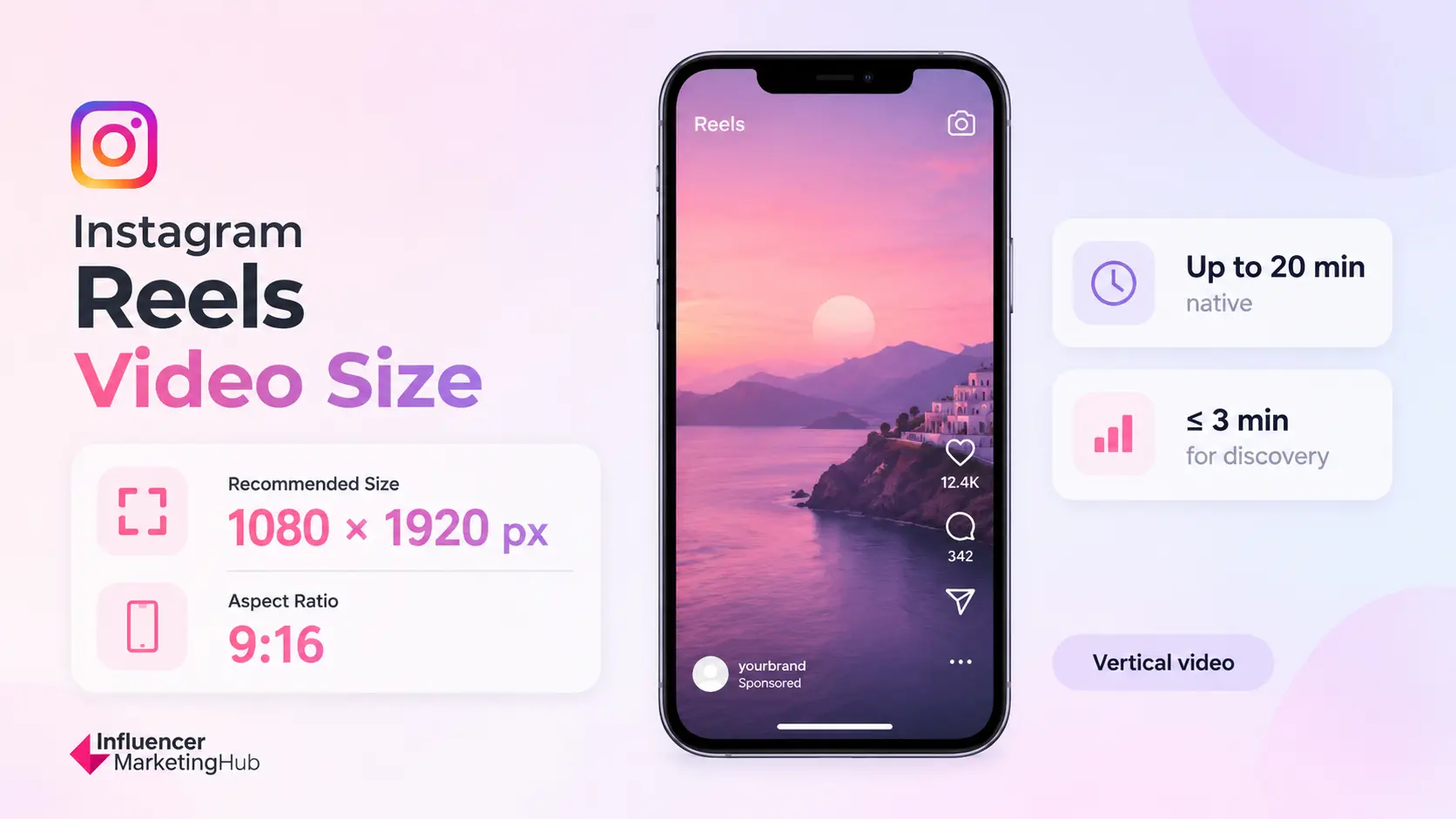
Instagram Reels are the main format for standalone video on Instagram, so 1080 × 1920 pixels at a 9:16 aspect ratio should be the default canvas for most video production.
Instagram can accept Reels across a broader range of aspect ratios, but 9:16 fills the vertical viewer without introducing unnecessary empty space or forcing a crop. Instagram also requires at least 720-pixel resolution and a minimum frame rate of 30 FPS.
| Specification | Instagram Reel |
| Recommended size | 1080 × 1920 px |
| Recommended aspect ratio | 9:16 |
| Supported aspect-ratio range | 1.91:1 to 9:16 |
| Minimum resolution | 720 px |
| Minimum frame rate | 30 FPS |
| Recommended format | MP4 |
| Recommended video codec | H.264 |
| Recommended audio codec | AAC |
A 9:16 Reel uses the entire vertical canvas, which gives you more control over product placement, subtitles, text, and visual hierarchy. Square or landscape footage can still be used where Instagram accepts it, but those formats require more compromise in a full-screen vertical environment.
For existing horizontal footage, the better approach is usually to reframe the video inside a 9:16 project rather than stretching it. We cover that workflow later in the guide.
- Influencer Marketing Hub Recommendation: Create Reels at 1080 × 1920 px / 9:16 and treat that as the master size for standalone Instagram video.
How Long Can an Instagram Reel Be?
Instagram currently allows you to record and edit Reels up to 20 minutes, but the technical maximum is only part of the story. Instagram also states that Reels longer than three minutes will not be recommended to new audiences.
That creates two useful limits for marketers and creators:
| Reel length | What it means |
| Up to 3 minutes | Eligible for broader recommendation to new audiences |
| More than 3 minutes | Can be published, but Instagram says it will not be recommended to new audiences |
| Up to 20 minutes | Current native recording/editing ceiling |
So a 20-minute Reel is technically possible, but that does not make 20 minutes the ideal production target.
If reach and discovery matter, the three-minute threshold is more important than the 20-minute ceiling. Longer Reels can still make sense for audiences who already follow you, particularly for tutorials, interviews, demonstrations, and content that genuinely needs more time.
Publishing through an API or scheduling platform can also introduce a different maximum. Meta's publishing API and third-party tools do not always mirror every capability available inside the Instagram app, so check the publishing workflow you actually use before exporting a long video.
What Size Should an Instagram Video Post Be?
If you're uploading one standalone video to Instagram in 2026, the simplest answer is:
- 1080 × 1920 px at 9:16
Instagram's video publishing model has shifted away from the older distinction between a standard Feed video and a Reel. Current publishing workflows treat standalone video as Reels, even though that Reel can still appear in followers' main Feeds.
That means you no longer need a separate production rule such as:
- Feed video = 4:5
- Reel = 9:16
for ordinary standalone organic publishing.
Instead, start with the 9:16 Reel canvas and then make sure the composition also works wherever Instagram previews that Reel elsewhere in the app.
This distinction matters because the same 1080 × 1920 video can appear in several contexts:
- Full-screen Reel viewer
- Main Feed
- Reels tab
- Profile grid
The video file itself remains 9:16, but Instagram may display a tighter preview or crop depending on the surface. We will cover those profile-grid and cover crops later in the guide.
Carousel video remains the main exception. A video placed inside a carousel stays part of that Feed carousel rather than becoming a standalone Reel, so it should be designed around the carousel's own dimensions.
⭐Creating Paid Video Instead?
Check out our Instagram Ad Sizes guide. The guide covers placement-specific dimensions for Instagram advertising.
Instagram Stories Video Size
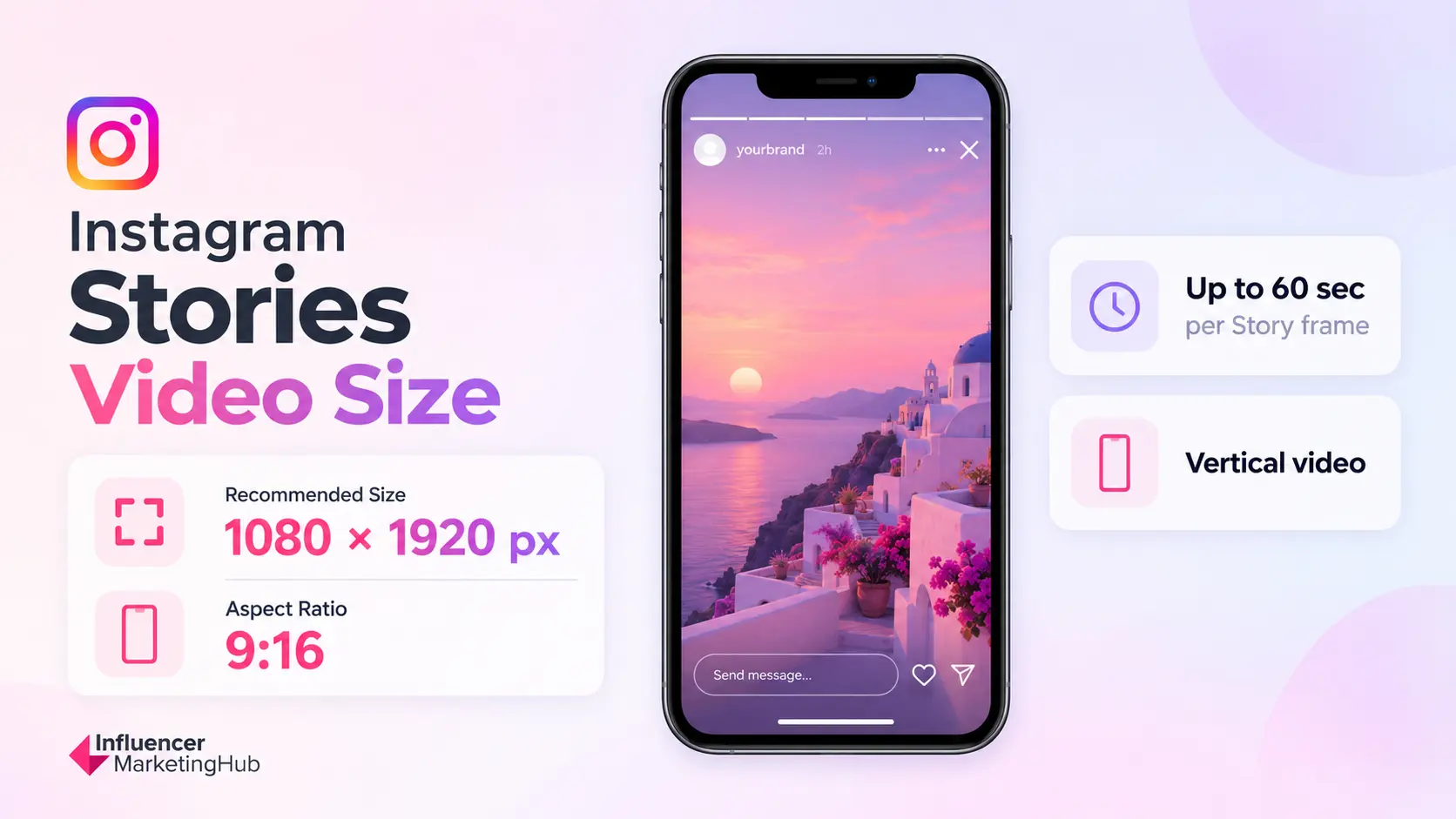
Instagram Stories use the same core canvas as Reels:
- 1080 × 1920 px
- 9:16
The difference is the viewing environment.
Stories appear as full-screen, temporary posts with their own profile information, interaction tools, stickers, links, and navigation layered over the video. So while you can start Reels and Stories from the same 9:16 master, the final composition still needs to be checked separately.
| Specification | Instagram Story video |
| Recommended size | 1080 × 1920 px |
| Aspect ratio | 9:16 |
| Length per Story frame | Up to 60 seconds |
| Recommended format | MP4 |
| Recommended codec | H.264 |
| Audio | AAC |
| Recommended frame rate | 30 FPS |
Instagram Stories can now play videos for up to 60 seconds continuously rather than breaking them into the old 15-second chunks. Longer uploads can continue across additional Story frames.
That means the current production rule is much simpler than it used to be:
Plan around 60-second Story frames, not 15-second segments.
Reels and Stories Use the Same Size, but They Are Not the Same Layout
Using 1080 × 1920 / 9:16 for both formats makes production more efficient, but blindly reusing the exact final edit can still cause problems.
Reels and Stories place different interface elements over the video. A subtitle that sits comfortably in a Reel may compete with a Story sticker or CTA. A logo placed close to the top can interfere with account information. Likewise, a product or price positioned at the very bottom can become harder to see once Instagram adds its own controls.
For teams producing both formats, use one 9:16 master project and create placement-specific finishing passes rather than rebuilding the entire video.
- Influencer Marketing Hub Recommendation: Start Stories at 1080 × 1920 / 9:16, keep essential text and subjects away from interface-heavy edges, and review the final Story preview before publishing.
We will map the practical Reels and Stories safe zones later in the guide so you can build those boundaries into your editing templates.
Instagram Carousel Video Size
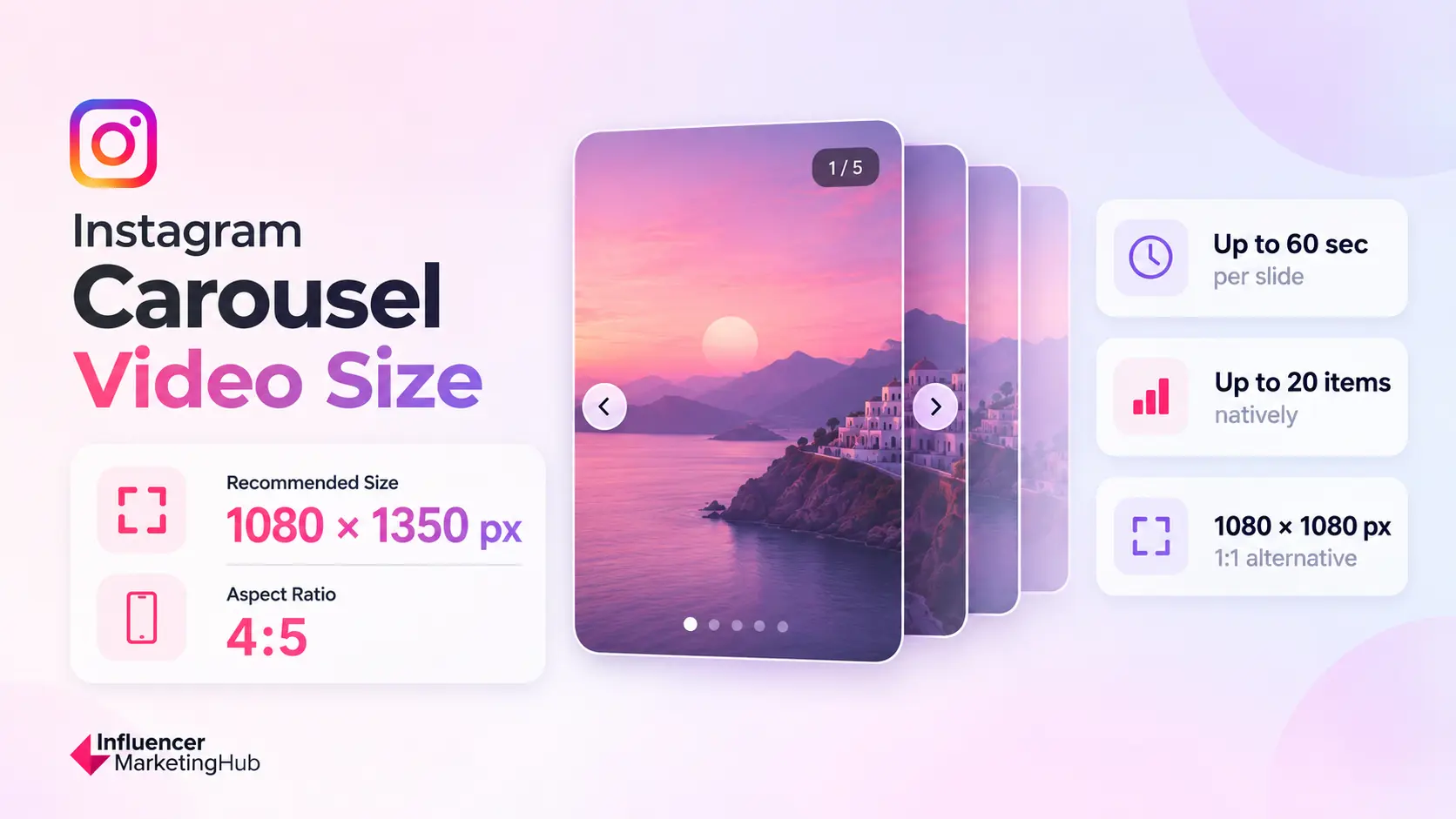
Instagram carousel videos follow a different sizing logic from Reels and Stories because they appear inside a Feed post rather than a full-screen vertical viewer.
For most video carousels, use 1080 × 1350 pixels at a 4:5 aspect ratio. The portrait format gives each slide more vertical space in the Feed while leaving enough room for Instagram's surrounding post interface.
| Specification | Instagram carousel video |
| Recommended size | 1080 × 1350 px |
| Recommended aspect ratio | 4:5 |
| Square alternative | 1080 × 1080 px / 1:1 |
| Video length | Up to 60 seconds per slide |
| Preferred format | MP4 |
| Video codec | H.264 |
| Audio codec | AAC |
| Recommended frame rate | 30 FPS |
| Native carousel capacity | Up to 20 photos/videos |
Current carousel guidance recommends 1080 × 1350 / 4:5 for video slides, with 1080 × 1080 / 1:1 remaining a practical alternative. Keeping every slide at the same ratio also helps prevent unwanted cropping as viewers swipe through the post.
Portrait vs. Square Carousel Video
Both 4:5 and 1:1 can work, but they serve slightly different creative needs.
A 4:5 video occupies more vertical space in the Feed. That makes it the stronger default when the video is being produced specifically for Instagram and the composition benefits from additional height.
Square can still make sense when:
- The source material is already designed at 1:1
- The carousel combines assets created for several platforms
- A centered composition works better than a taller crop
- Existing campaign templates use square cards
For new Instagram-first creative, I would start at 1080 × 1350.
- Influencer Marketing Hub Recommendation: Choose the carousel ratio before editing starts and keep the same dimensions across the sequence. Moving a finished 9:16 Reel into a 4:5 carousel later can force substantial cropping of faces, products, subtitles, and titles.
How Many Videos Can an Instagram Carousel Have?
Instagram currently supports up to 20 photos or videos in a carousel when you publish directly through the Instagram app. Instagram expanded the native limit from 10 to 20 in 2024, and current 2026 guidance continues to reflect the 20-item limit.
However, the publishing method matters.
Meta's current Instagram API documentation still limits an API-published carousel to 10 images, videos, or a combination of both. The API creates a carousel from a list of up to 10 child media containers.
That means the practical limit is:
| Publishing method | Carousel limit |
| Instagram app | Up to 20 photos/videos |
| Meta Instagram API | Up to 10 items |
| Third-party scheduling tool | Depends on the tool/API implementation |
Sprout Social, for example, currently limits scheduled Instagram carousels to 10 items even though Instagram itself accepts 20 when posting natively.
If you're planning a longer carousel, check the publishing method before producing all 20 slides.
Instagram Video Size Limits
Instagram video size limit can mean two different things: how long the video can be and how large the uploaded file can be.
Those limits also vary depending on whether you're publishing directly through Instagram or through Meta's API or a third-party scheduling platform.
Instagram Video Length Limits
For day-to-day production, these are the limits that matter most:
| Instagram video format | Working length limit |
| Reel / standalone video | Up to 20 minutes natively |
| Reel for new-audience discovery | Keep at or below 3 minutes |
| Story | Up to 60 seconds per Story frame |
| Carousel video | Up to 60 seconds per video slide |
A maximum should be treated as a technical allowance rather than a recommended runtime.
For Reels in particular, Instagram's longer native recording allowance does not change its guidance that videos over three minutes will not be recommended to new audiences. So marketers using Reels for discovery should treat three minutes as the more consequential threshold.
Third-party publishing introduces another layer. Meta's publishing API can apply different duration requirements from the Instagram app, so teams using schedulers should verify the limit in the tool used for publishing rather than planning around the native-app maximum alone.
What Is the Maximum Instagram Video File Size?
There is no single file-size number that works reliably across every Instagram publishing workflow.
That distinction matters because the existing version of this guide repeatedly uses 4 GB as a universal Instagram video maximum. In practice, platform and API limits differ.
Meta's current publishing documentation, for example, applies its own requirements to videos uploaded through the Instagram API, while third-party publishing platforms can impose lower upload limits as part of their workflow.
For creators and marketers, the better production rule is:
Export at the correct dimensions and quality, then confirm the file-size limit in the app, API, or scheduler you will actually use to publish.
This is also why creating unnecessarily large exports offers little practical advantage. A correctly framed, well-encoded 1080 × 1920 video is usually a better Instagram deliverable than a much larger file with the wrong ratio or inefficient encoding.
We will cover the recommended export settings later in the guide.
Which Instagram Video Aspect Ratio Should You Use?
The best Instagram video aspect ratio depends on where the video will appear.
For most standalone video, 9:16 should be the default. It matches the full-screen vertical shape used by Reels and Stories.
Carousel video is the main exception, where 4:5 makes better use of the Feed.
| Aspect ratio | Recommended Instagram use | Typical size |
| 9:16 | Reels, single video posts, Stories | 1080 × 1920 px |
| 4:5 | Portrait carousel video | 1080 × 1350 px |
| 1:1 | Square carousel video | 1080 × 1080 px |
| Landscape | Situational / existing horizontal footage | Varies |
The aspect ratio describes the shape of the frame rather than its overall quality.
For example, both 1080 × 1920 and a higher-resolution 2160 × 3840 file use the same 9:16 ratio. Increasing the resolution gives you more pixels, but it does not change how tall or wide the composition is.
For Instagram production, the ratio often matters first because it determines what will be visible and what may need to be cropped.
9:16 for Reels and Stories
Use 9:16 when the video needs to occupy the full vertical viewer.
This gives you room to structure:
- Vertical talking-head footage
- Product demonstrations
- Tutorials
- Subtitles
- Screen recordings
- Full-screen branded video
It also reduces the need for Instagram to fit a landscape or square source into a vertical viewing environment.
4:5 for Carousel Video
Use 4:5 when the video sits inside a Feed carousel.
It remains portrait-oriented and mobile-friendly, while fitting the carousel's Feed presentation better than a full 9:16 Reel canvas.
This is why a video should ideally be edited with its eventual destination in mind. A title placed near the top of a 9:16 frame may disappear when the video is reframed to 4:5.
When Does 1:1 Still Make Sense?
Square video remains useful for carousels, particularly when the creative has a centered composition or needs to work across multiple platforms.
However, it uses less vertical Feed space than 4:5, so I would treat 1:1 as an alternative rather than the default for Instagram-first carousel production.
Can You Upload Landscape Video to Instagram?
Instagram can accept wider video in some publishing contexts, but landscape footage is generally a weaker starting point for Reels and Stories because it leaves less of the vertical screen occupied by the actual video.
If your source footage is horizontal, you have three practical options:
- Crop and reframe it into 9:16
- Place it inside a designed vertical canvas
- Keep it horizontal where the content genuinely depends on the width
The right choice depends on what sits near the edges of the source footage. Cropping a landscape interview may work if the speaker remains centered. Cropping a wide group shot may remove important subjects.
Later in this guide, we'll show how to resize and reframe video without stretching the footage.
- Simple rule: Use 9:16 for full-screen Instagram video, 4:5 for portrait carousel video, and 1:1 when a square carousel composition better fits the source creative.
The next part of the guide moves beyond the dimensions themselves and looks at safe zones, where Instagram's interface can cover subtitles, products, headlines, or other elements even when the video is correctly sized.
Instagram Reels and Stories Safe Zones
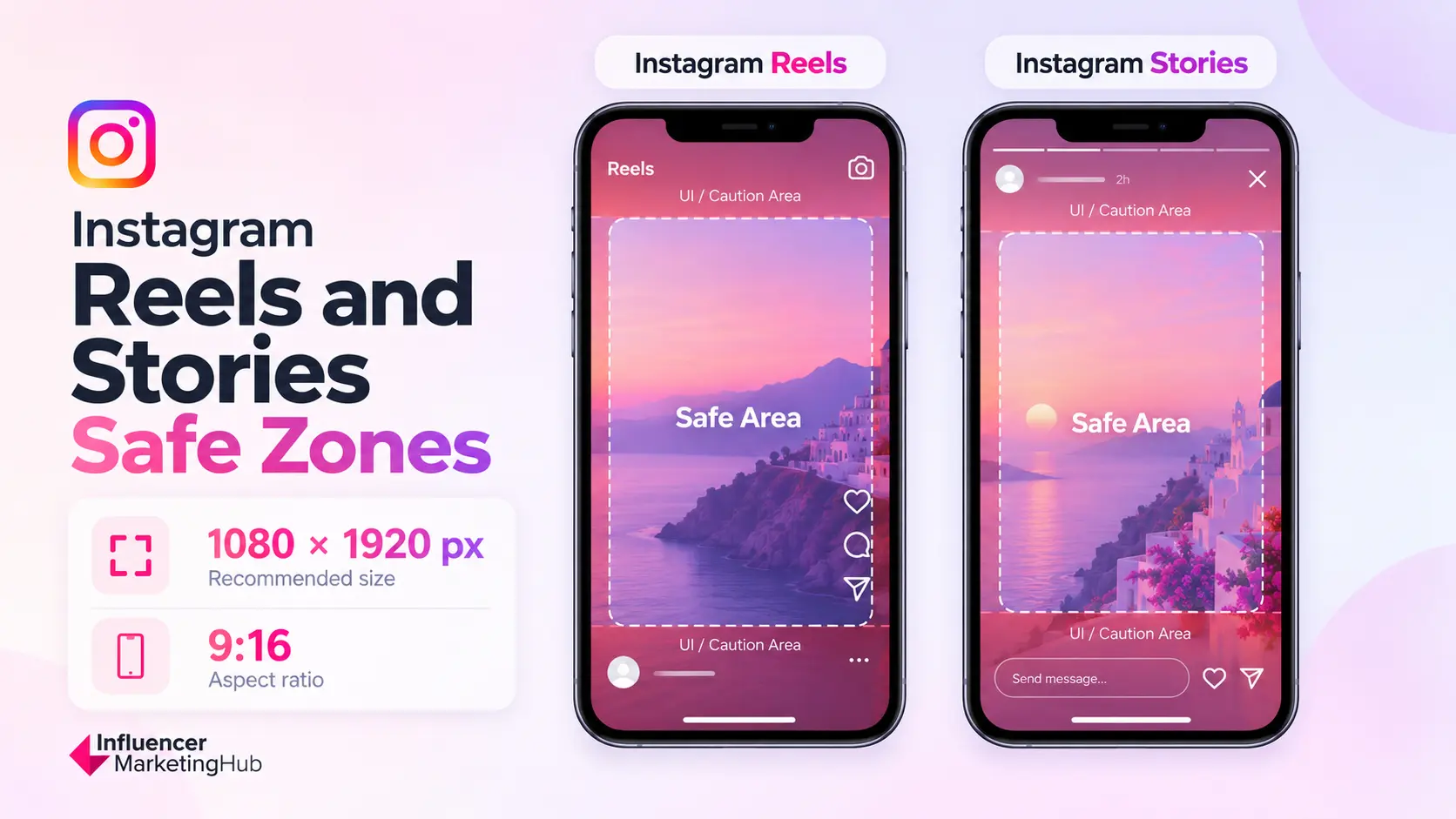
Using 1080 × 1920 pixels at 9:16 gives Reels and Stories the correct canvas. It does not mean every part of that canvas is equally useful.
Instagram overlays its own interface on top of the video. Reels can display account information, captions, audio details, engagement controls, and other interface elements around the edges. Stories add their own account information, progress indicators, replies, stickers, links, and interaction controls.
A subtitle, product, face, or headline can therefore sit inside a perfectly sized 9:16 video and still become difficult to see once the content is published.
Unlike Instagram's advertising documentation, Instagram does not provide one equally clear, universal percentage-based safe-zone specification for every organic Reel and Story. For organic video, it is more useful to treat safe zones as a practical editing boundary and use the final platform preview as the last check.
What Should Stay Inside the Safe Area?
Anything the viewer needs in order to understand the video should stay comfortably away from the outer edges.
That includes:
- Faces and primary subjects
- Products
- Headlines
- Brand logos
- Subtitles
- Prices and offers
- Promo codes
- Important CTA messaging
Background footage, textures, scenery, and decorative graphics can extend further toward the edges because losing a small portion of them does not change the meaning of the video.
A useful test during editing is:
If Instagram covered this element, would the viewer still understand the video?
If the answer is no, move it further toward the center.
Where Should Instagram Video Subtitles Go?
Subtitles need particular attention because the lower portion of a vertical video is often one of the busiest areas of the Instagram interface.
Avoid placing captions directly against the bottom edge of the 9:16 canvas. Moving them into the lower-middle portion of the frame generally gives them more room to remain visible while keeping them close enough to the speaker or subject to be easy to follow.
The same principle applies to promotional messages. A discount code placed at the very bottom of a Story or Reel may technically be part of the exported video but compete with Instagram's own controls once published.
Reels and Stories Need Separate Checks
Reels and Stories both use 1080 × 1920 / 9:16, which makes it practical to begin with the same master project.
Their interfaces are different, however.
A Reel may place engagement controls along the side and captions toward the bottom, while Stories use a different combination of account information, navigation, stickers, replies, and CTAs.
That means:
Same canvas ≠ identical finished layout.
Use the shared 9:16 project to save production time, then perform a separate finishing pass for each placement.
- Influencer Marketing Hub Recommendation: Keep essential subjects and messaging toward the center of the 9:16 canvas, leave breathing room around all edges, and inspect the actual Reels or Stories preview before publishing.
Instagram Reel Cover Size and Profile Grid Crop
A Reel can look perfect when someone watches it full-screen and still look awkward on your profile.
The reason is that Instagram does not display the full 9:16 Reel cover everywhere. Your Reel uses a 1080 × 1920 vertical canvas in the Reel viewer and Reels tab, while the main profile grid displays a tighter 3:4 thumbnail crop. Current 2026 Instagram sizing guidance reflects that taller 3:4 profile grid.
That makes cover design a separate part of Instagram video production.
What Size Should an Instagram Reel Cover Be?
Start with:
- 1080 × 1920 pixels
- 9:16
Using the same dimensions as the Reel itself gives you a full-size cover that works in the Reels viewer and Reels tab. Instagram also allows you to select a frame from the video or upload a separate cover image.
The problem appears when that cover is shown in the main profile grid.
What Size Is a Reel on the Instagram Profile Grid?
Instagram's current profile grid uses a 3:4 preview for Reels.
At 1080 pixels wide, that corresponds to a visible area of approximately:
- 1080 × 1440 pixels
- 3:4
If Instagram takes a centered 3:4 crop from a 1080 × 1920 Reel cover, approximately:
240 pixels are removed from the top
and
240 pixels are removed from the bottom.
Note: Those figures are an Influencer Marketing Hub calculation based on the two canvas sizes, rather than pixel margins published by Instagram.
That means a headline placed close to the top of the full Reel cover can disappear or become partially cut off in the profile grid even though it looks fine when someone opens the Reel.
Where Should Text Go on an Instagram Reel Cover?
For a more conservative production approach, keep essential cover content inside the central 1080 × 1350 / 4:5 area.
That central area leaves approximately:
285 pixels above
and
285 pixels below
when placed inside a 1080 × 1920 cover.
Note: Again, these are Influencer Marketing Hub calculated crop guides, not an official Instagram safe-zone requirement.
The advantage is simple: a headline, face, product, or logo kept inside that tighter central composition has more room to survive the different ways Instagram may present the cover across the app.
Keep These Inside the Central Crop
Prioritize:
- Reel headline
- Face or primary subject
- Product
- Logo
- Series or episode number
- Other identifying information
Background photography and decorative elements can extend across the full 9:16 cover.
A Practical Reel Cover Workflow
Build the cover in this order:
- Design at 1080 × 1920 / 9:16
Start with the full Reel canvas.
- Preview a centered 1080 × 1440 / 3:4 crop
Check how it will read in the main profile grid.
- Keep the most important elements within the central 1080 × 1350 / 4:5 area
Use this as a conservative design zone for headlines, faces, products, and branding.
- Check Instagram's profile-grid preview before publishing
Instagram allows creators to adjust how the cover appears on the profile grid, so use the live preview rather than relying exclusively on your editing template.
- Influencer Marketing Hub Recommendation: Design Reel covers at the full 1080 × 1920 / 9:16 size, but compose the important parts for the tighter profile-grid crop from the beginning.
How to Resize a Video for Instagram
When resizing Instagram videos, it's important to note that resizing video usually requires more than changing the project's width and height.
Moving from a landscape video to a 9:16 Reel, for example, changes which parts of the scene can remain visible. You will, therefore, need to reframe the composition, rather than stretch the existing picture until it fills the canvas.
1. Choose Where the Video Will Be Published
Start with the destination.
- Reel / standalone video → 1080 × 1920 / 9:16
- Story → 1080 × 1920 / 9:16
- Portrait carousel → 1080 × 1350 / 4:5
- Square carousel → 1080 × 1080 / 1:1
Decide this before you start cropping.
2. Set the Correct Canvas
Create a project or sequence using the target dimensions.
If you are turning a horizontal 1920 × 1080 video into a Reel, for example, create a 1080 × 1920 vertical project and place the source footage inside it.
Do not simply distort the horizontal video until it fills the new frame.
Resize the frame, not the person.
3. Reframe the Subject
Once the source is inside the new canvas, decide what needs to remain visible.
A vertical crop may require you to:
- move the subject toward the center
- keyframe the crop as a person moves
- zoom into the original footage
- reposition products
- move graphics
- rebuild titles
- adjust subtitles
This is where higher-resolution source footage becomes especially useful. It gives you additional room to crop while retaining image detail.
4. Reposition Text and Graphics
The visual crop is only part of the conversion.
A subtitle designed for the bottom of a landscape YouTube video may sit too close to Instagram's interface once that footage becomes a Reel. Likewise, a logo that worked in a corner of a 16:9 frame may disappear when the sides are cropped away.
After reframing the footage, check:
- Headlines
- Subtitles
- Logos
- Products
- Offers
- Promo codes
- CTA-related text
against the safe-zone principles covered earlier.
5. Export and Preview the Final Version
Export using the Instagram preset appropriate to the project, then check the finished file on a mobile screen.
The final Instagram or publishing-tool preview should answer:
- Is the subject framed correctly?
- Is any text cut off?
- Are subtitles clear of interface-heavy areas?
- Does the Reel cover still work?
- Has a carousel crop changed the composition?
- Does the video still look sharp after export?
A technically valid 9:16 video can still be poorly framed. The final preview is therefore part of the resizing process, rather than a separate administrative step.
How to Turn a Landscape Video Into an Instagram Reel
A landscape source presents the biggest resizing challenge because 16:9 and 9:16 are almost opposite compositions.
Simply cropping the center may work when the main subject stays centrally framed. It works far less well when important people, products, or graphics are spread across the width of the shot.
You have three main options:
| Approach | Best when |
| Crop to 9:16 | The important subject sits near the center |
| Reframe dynamically | The subject moves across the horizontal footage |
| Place the landscape footage inside a designed 9:16 canvas | Cropping would remove important visual information |
The third option might use the remaining vertical space for branded backgrounds, titles, supporting graphics, or other intentional design elements.
The goal is to make the final vertical video look composed for Instagram, rather than like a horizontal video that happened to be forced into a vertical frame.
- Influencer Marketing Hub Recommendation: When repurposing video, preserve the message and focal point first. Matching the correct dimensions matters, but the crop should never remove the part of the footage that makes the video understandable.
Why Does Instagram Crop My Video?
Instagram crops video when the uploaded composition and the way that video is displayed do not match.
A 1080 × 1920 / 9:16 Reel, for example, works naturally in the full-screen Reel viewer. That same piece of content can appear in tighter previews elsewhere on Instagram, including the profile grid.
Carousel video creates another common mismatch. Taking a finished 9:16 Reel and placing it into a 4:5 carousel slide removes a substantial part of the vertical canvas. Anything near the top or bottom can disappear unless the video is reframed.
The solution is to plan around the destination rather than simply exporting one master file everywhere.
IMH recommendation: Keep high-quality source footage as your master, then create separate 9:16 and 4:5 versions when the campaign or publishing plan uses both full-screen and Feed-based video.
Why Does Instagram Reduce Video Quality?
Instagram processes uploaded video before distributing it. Some compression is therefore part of the publishing process.
Quality problems tend to become more visible when the source file is already weak before upload. Common causes include:
- Low-resolution source footage. A compressed clip downloaded from another platform gives Instagram less visual information to work with.
- Repeated exporting. Exporting, compressing, downloading, and re-exporting the same video can gradually reduce quality.
- Aggressive compression settings. An extremely low bitrate can create artifacts before Instagram even processes the file.
- Unnecessary enlargement. Scaling a small source video up to 1080 × 1920 does not recreate detail that was never captured.
- Heavy cropping. Reframing a low-resolution horizontal source into a tight vertical crop can magnify softness.
The better workflow is to edit from the highest-quality original footage available, then create the Instagram export directly from that master.
Does Instagram Compress 4K Video?
High-resolution source footage can be useful during production, especially when you need room to crop or reframe.
The final Instagram presentation, however, is optimized for mobile delivery. Uploading a much larger source file does not guarantee that viewers will receive that same resolution untouched.
For most workflows, the practical advantage of 4K is therefore editing flexibility rather than simply uploading a larger final file.
Shoot or edit in high resolution when it benefits the project, then export for the actual Instagram canvas.
How to Prevent Instagram From Cropping Important Content
Before publishing, check the video in the context where people will actually see it.
For a Reel, that means checking:
- the full 9:16 video
- interface overlays
- subtitle placement
- Reel cover
- profile-grid crop
For Stories:
- top and bottom interface areas
- stickers or interactive elements
- subtitles
- offers and CTAs
For carousel video:
- 4:5 or 1:1 crop
- consistency across slides
- text positioning from card to card
A correct file size or aspect ratio tells you that the video fits the format. It does not tell you that the composition survived the format.
6 Tools for Creating and Editing Instagram Videos
Creating amazing Instagram videos is easier than you think, but you’ll need the right tools. Here’s a collection of free and premium video editing software to try.
Quik by GoPro
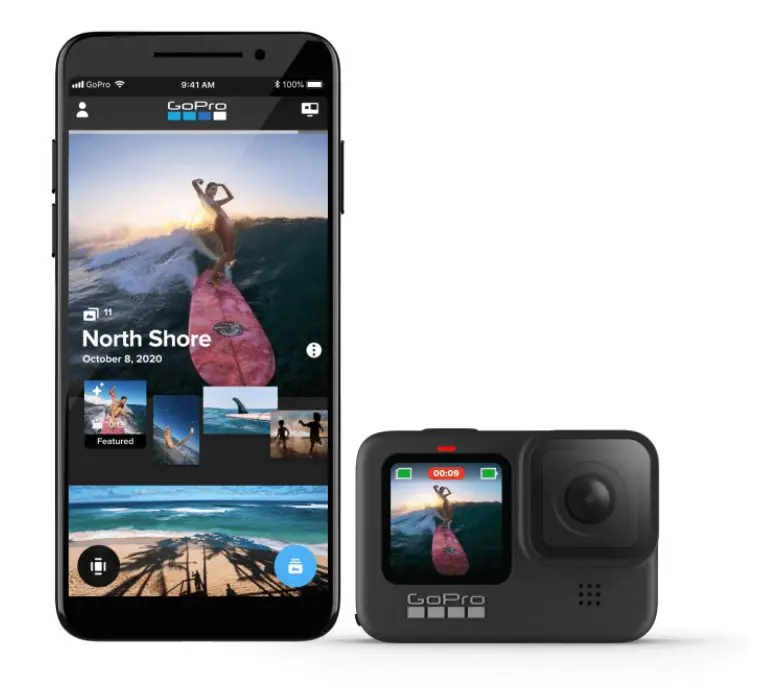
Quik was built by GoPro. Originally created for GoPro users as an on-the-go editing tool, it can also be used to edit videos and images captured on other devices.
Quik features include:
- Import up to 500 items at a time
- Import MOV, MP4, and H264 file formats
- Add text and music
- Play footage in fast or slow-motion
- Add text overlays, emojis, and title slides
- Choose video duration based on the social media platform you’re posting to
- Find the best filter from a large collection
- Includes size formatting for Instagram
Plans
Free.
Magisto
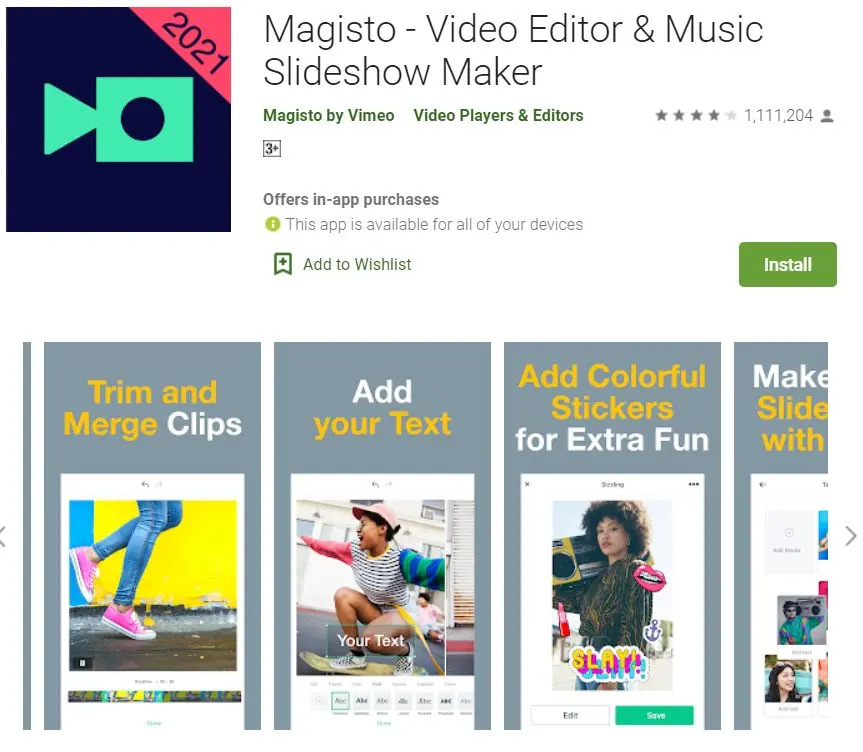
Magisto is an Instagram video editing tool. It’s powered by AI. Magisto’s AI can create videos based on sound and facial recognition, landscapes, and action sequences. The AI was introduced to help creators streamline the creation of videos that trigger emotional responses from viewers.
Magisto’s features include:
- Access to a media library of content
- Animation
- A drag and drop builder
- Adjusts speed for slow and fast-motion
- Use custom branding
- HD resolution support
- A large variety of filters
- Analytics and privacy options
Plans:
- Premium: $4.99/month
- Professional: $9.99/month
- Business: $34.99/month
Adobe Premiere Rush
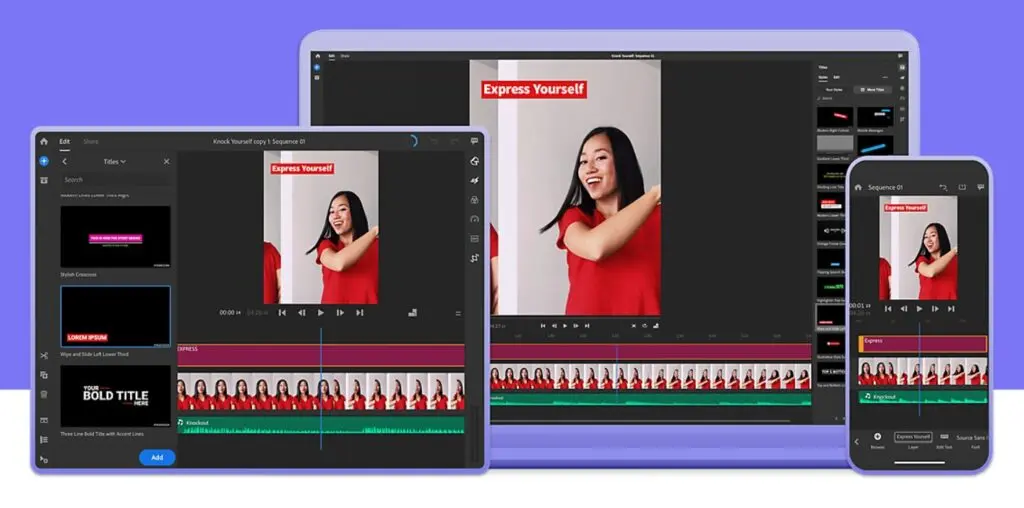
Adobe Premiere Rush is a free video editing app that uses AI. The tool gives users two types of editing. The first, freeform mode, gives you the flexibility to control all aspects of the editing process. Automatic, the second option, creates your video using smooth transitions once you’ve added all elements.
Adobe Premiere Rush features include:
- Sync-to-cloud
- Transfers your work into Adobe Premiere Pro for extra editing
- Download videos on any device
- Exports for all social platforms
- Built-in transitions, filters, and text
Plans
Free to download and use. You also get 2GB of free storage space. If you’d like more storage, upgrade for $9.99/month for the Premiere Rush Premium Features and 100GB of cloud storage.
Inshot
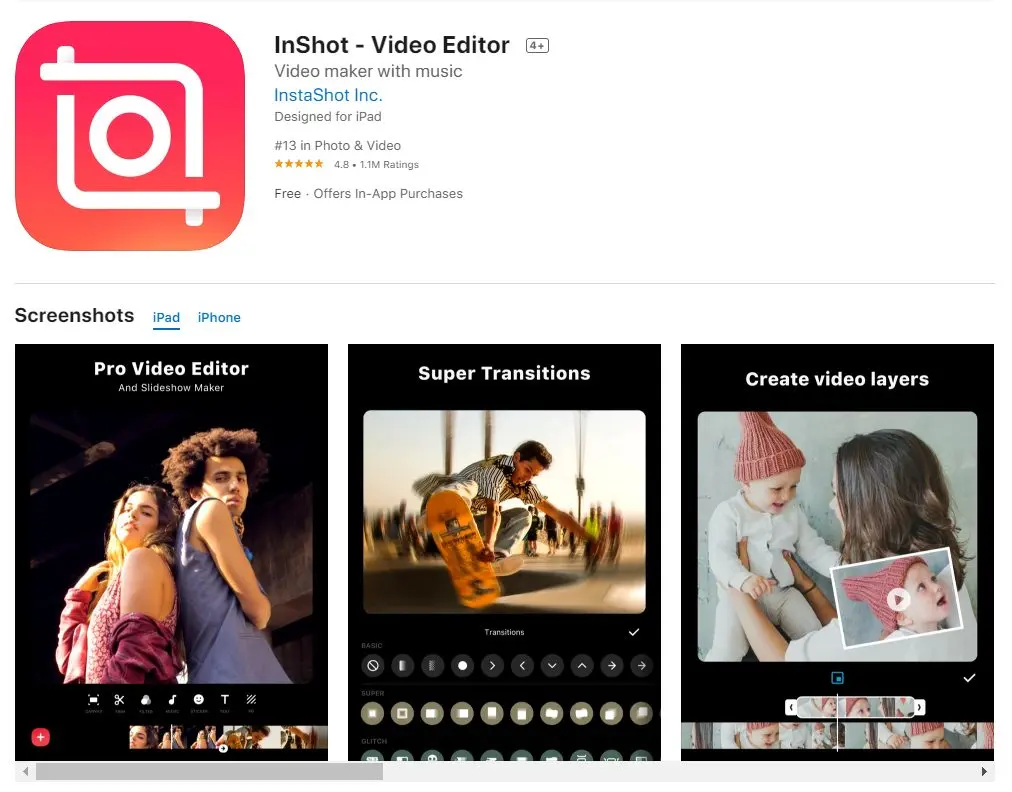
InShot is an Android and iOS video editing app. It’s designed to make creating quality videos on-the-go a breeze. It’s less complex than larger, more feature-rich apps out there, and that’s what makes it effective. While we like to think of it as a video-first app, it can also be used to add filters to images and create collages.
Inshot’s features include:
- Add stickers to videos
- Add text to your videos
- Set a frame size for IGTV, stories, or Instagram Feed
- Trim, cut and split videos
- Blur backgrounds and unused areas in videos and images
- Add filters, colors and a collection of effects like ghost, glitch, TV, and more
- Apply slow-motion and fast-motion effects
- Adjust volume, video rotation and flipping, and music
Plans
Free with the option to upgrade to Pro and unlock more features.
Horizon

Horizon is one of the few video editing apps that allows fullscreen recording, just as you would if creating vertical videos using Instagram. Vertical video dimensions are easily applied, and while this is a core feature, it is possible to still use the app’s landscape video dimensions and recording mode for videos for other platforms.
Horizon features include:
- Capture horizontal videos and photos
- Real-time filters
- Direct-to-app footage uploads
- Shoot in slow or fast-motion
- Shoots in 2k resolution
Plans
Horizon offers a free version for Android users with limited features. Video clips run for up to 15 seconds, include a watermark in the bottom corner, and with a Horizon brand advertisement. An upgrade for $2 unlocks all features and removes watermark and advertisements.
iMovie
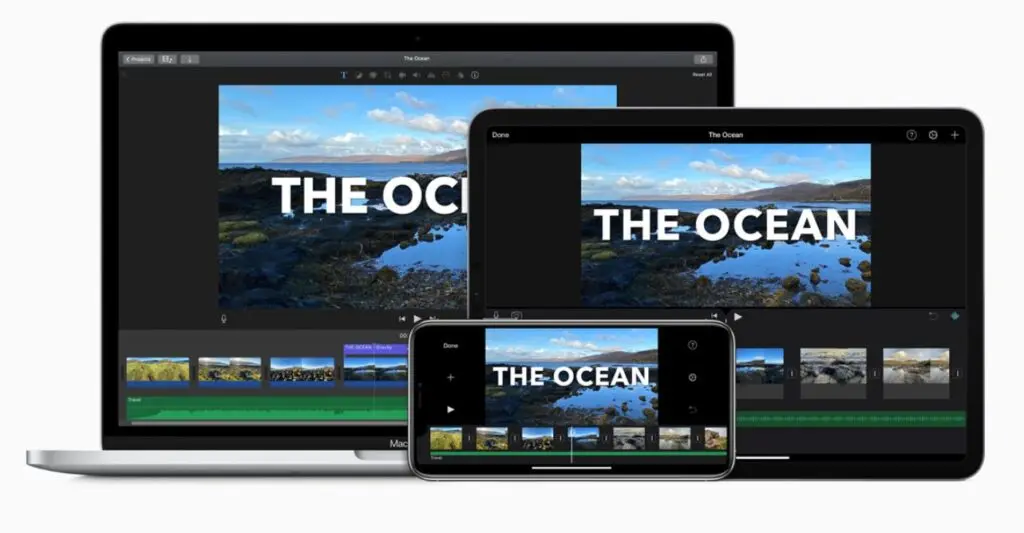
iMovie is an iOS-specific video editing tool. Its easy-to-use interface makes it a favorite for many on-the-go users. Like Adobe Premiere Rush, it offers self-editing, an option to automatically edit videos, and create an accompanying trailer.
iMovie features include:
- Media libraries to arrange all content
- Access to 30 video filters and 20 audio filters
- Color matching for a consistent look and feel
- Supports HD and 4K
- A stability feature
- Sharing with social media platforms
Plans
Free.
Your Shortcut to Sharper, Smarter Instagram Videos
Instagram video sizing is much easier once you separate full-screen video from Feed-based video.
For Reels, standalone video posts, and Stories, 1080 × 1920 pixels at 9:16 is the main canvas to remember. Carousel video is the major exception, where 1080 × 1350 at 4:5 gives you a portrait format designed for the Feed.
The dimensions only establish the frame. Safe positioning, Reel-cover crops, export settings, and final previews determine whether the video actually appears the way you intended.
Build from high-quality source footage, reframe for the destination instead of stretching, and check every important element before publishing.
For an easier production reference, keep the IMH Instagram Video Size & Format Cheat Sheet beside your editing workflow.
Frequently Asked Questions
What is the best Instagram video size?
For most standalone Instagram video, the best starting size is 1080 × 1920 pixels at a 9:16 aspect ratio. That is the recommended production canvas for Reels, single video posts, and Stories. Carousel videos are different because they appear inside the Feed; for those, we recommend 1080 × 1350 pixels at 4:5.
What size should an Instagram video post be?
A single standalone Instagram video should generally be created at 1080 × 1920 pixels / 9:16 because Instagram now treats standalone video as Reel-first. The video can still appear in the main Feed, but the underlying file should be prepared for the vertical Reel viewer.
What is the Instagram Reel size?
The recommended Instagram Reel size is 1080 × 1920 pixels, which uses a 9:16 vertical aspect ratio. This fills the Reel viewer and gives you the most control over the placement of subjects, subtitles, products, and branding.
What is the Instagram Story video size?
Instagram Story video should be 1080 × 1920 pixels at 9:16. A Story frame can run for up to 60 seconds. Longer videos may continue across additional Story frames depending on how they are uploaded.
What aspect ratio should Instagram videos use?
Use 9:16 for Reels, standalone video posts, and Stories. Use 4:5 for portrait carousel video and 1:1 when a square carousel format better suits the content. The right ratio depends on whether the video appears full-screen or inside the Feed.
What is the maximum Instagram video size?
There is no single universal file-size limit across every Instagram publishing workflow. Native Instagram, Meta’s publishing API, and third-party scheduling tools can apply different limits. For video length, Reels can currently run much longer than Stories or carousel slides, so check the requirements for the format and publishing method you use.
How long can an Instagram Reel be?
Instagram currently allows Reels up to 20 minutes natively, but videos longer than three minutes are not recommended to new audiences. For discovery-focused content, the three-minute threshold is therefore more important than the technical maximum. Third-party publishing tools can impose different limits.
What size should an Instagram carousel video be?
For portrait carousel video, we recommend 1080 × 1350 pixels at 4:5. A 1080 × 1080 / 1:1 square video is also useful when the creative suits a centered square composition. Keep all carousel slides at the same intended ratio for a consistent experience.
Does Instagram support 4K video?
High-resolution footage can be uploaded in some workflows, but Instagram processes video for delivery. The main advantage of shooting in 4K is having more room to crop, stabilize, and reframe during editing. For final delivery, prioritize the correct Instagram dimensions and a clean export over simply creating the largest possible file.
Why does Instagram crop my Reel?
A Reel uses a 9:16 full-screen canvas, but Instagram displays that content in tighter crops elsewhere, particularly on the profile grid. The cover can therefore look different from the full Reel. Keep headlines, faces, products, and essential branding toward the center and check the profile-grid preview before publishing.

![Instagram Ad Sizes for All Post Formats [2026 Cheat Sheet]](https://s.influencermarketinghub.com/imaginary/resize?width=400&height=200&type=webp&url=https://influencermarketinghub.com/wp-content/uploads/2020/01/58e98fbd-instagram-ad-sizes-for-all-post-formats-2026-cheat-sheet.jpg)